How to Install IPTV Smarters on LG Smart TV (2026)
Learn how to install and set up IPTV Smarters on your LG Smart TV effortlessly with our step-by-step guide.
Table of Contents
If you're an LG Smart TV owner looking to enhance your streaming experience with IPTV, this comprehensive guide is tailored for you. The renowned IPTV application, IPTV Smarters Pro, is now readily available on the LG Content Store.
This tutorial provides a detailed walkthrough on how to install and configure IPTV Smarters on your LG TV. Whether you're new to IPTV or transitioning from another app, this guide ensures a smooth setup process.
Understanding IPTV Smarters Pro
IPTV Smarters Pro is a highly intuitive and robust IPTV player. While it does not offer content directly, a valid IPTV subscription allows access to live TV channels, movies, and series through this app.
Features include:
Live TV with EPG
Video on Demand (VOD)
Catch-up and time-shift (as supported by your provider)
Multiple playlist formats (Xtream Codes, M3U, API)
Support for multiple user profiles
For LG Smart TV users, the convenience of downloading IPTV Smarters Pro directly from the LG Content Store eliminates the hassle of sideloading.
Installing IPTV Smarters on LG TV
Ensure your LG TV is connected to the internet and that you're logged into your LG account before starting.
Step 1: Access the LG Content Store
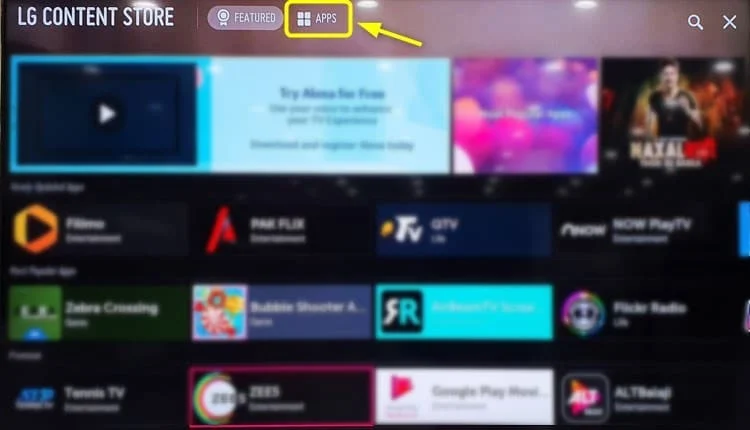
Press the Home button on your LG remote.
Find and open the LG Content Store icon.
Step 2: Locate IPTV Smarters Pro
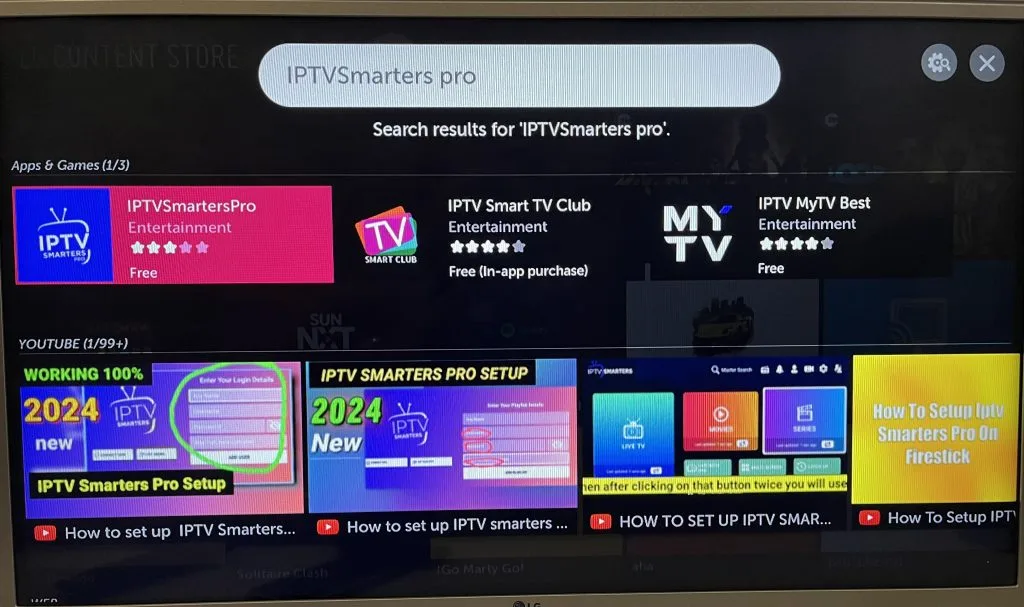
Use the search feature inside the Content Store (magnifying glass icon).
Enter “IPTV Smarters Pro”.
Select the official app from the search results.
Step 3: Install the Application
Click the app icon and press Install.
Wait for the installation to complete, usually under a minute depending on your internet speed.
After installation, you'll have the option to Launch the app.
You can also access the app later from your TV's “My Apps” or “Home” menu.
Setting Up IPTV Smarters on LG TV
Once installed, follow these steps for the initial setup:
Step 1: Accept Terms and Conditions
Upon launching the app for the first time, accept the terms and conditions by clicking Accept.
Step 2: Select a Login Method
Choose from several login options:
Load Your Playlist or File/URL (M3U)
Login with Xtream Codes API
Most IPTV providers offer Xtream Codes login details (username, password, and server URL), which is recommended for optimal performance and EPG support.
Step 3: Enter IPTV Credentials
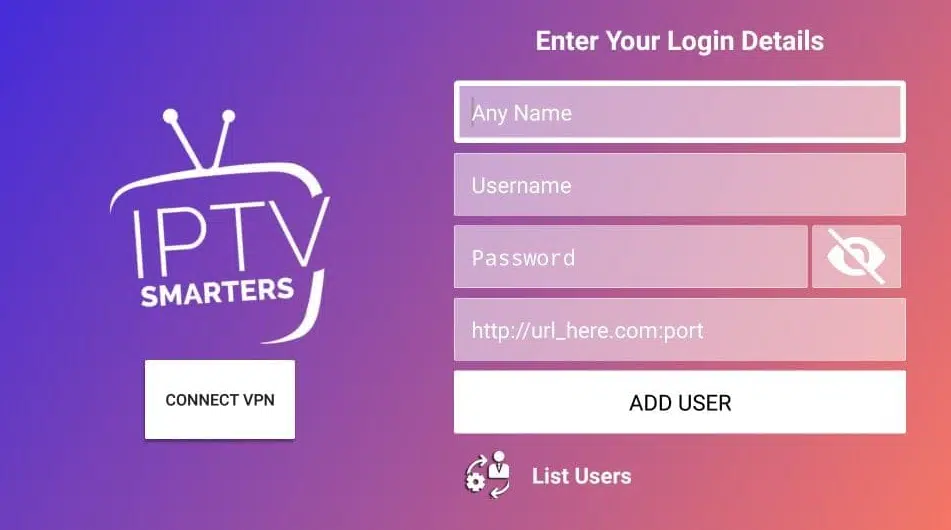
Enter your login details as provided by your IPTV provider.
Assign a custom name to your playlist, like “My IPTV” or using your provider's name.
Click Add User or Login.
The app will verify your credentials and begin syncing your channels, VOD content, and EPG.
Step 4: Begin Streaming
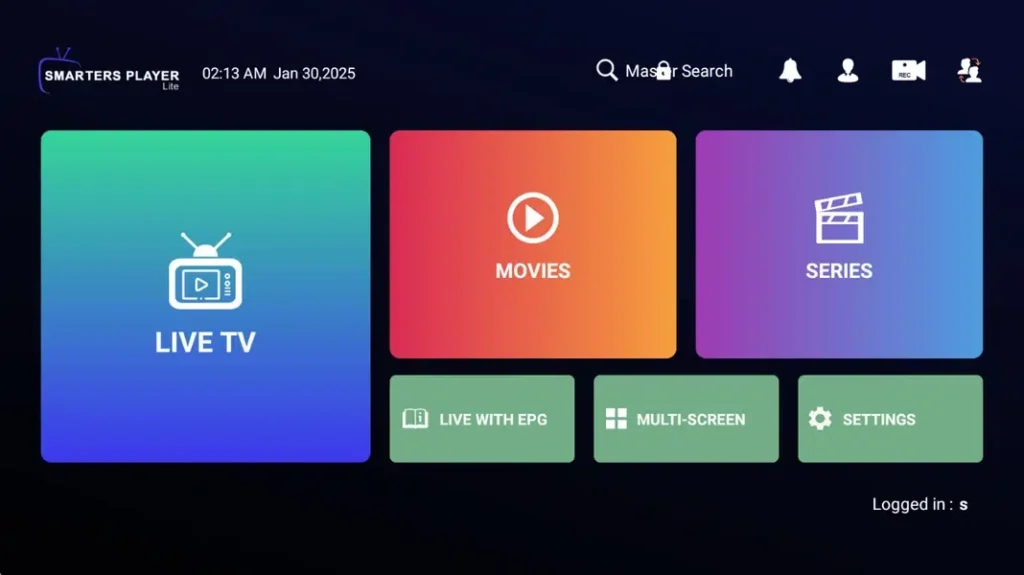
After setup, the IPTV Smarters dashboard appears. Here, you can explore:
Live TV
Movies
Series
EPG Guide
Settings and parental controls
Navigate smoothly using your LG remote, with the interface optimized for Smart TV screens.
Troubleshooting Common Issues
1. App Not Found in LG Store
If IPTV Smarters Pro is missing from the LG Content Store:
Ensure your TV is updated to the latest firmware.
Confirm your TV model is webOS 4.0 or newer.
Try switching your LG account region to UK or US in settings.
2. Login Fails or Playlist Issues
This often indicates incorrect or expired login credentials. Verify with your IPTV provider that your account is active and that you’re using the correct login method.
3. Buffering or Channel Malfunctions
Ensure a stable internet connection (minimum 25 Mbps for 4K streaming). Restarting your router or using a wired Ethernet connection can also help if your LG TV supports it.
Enhance Your IPTV Experience on LG TV
Consider using a VPN if your ISP throttles IPTV traffic or blocks certain services.
Keep IPTV Smarters Pro updated to the latest version available.
Check if your IPTV provider offers features like catch-up, multi-screen, or DVR.
Conclusion
Installing IPTV Smarters Pro on your LG Smart TV is a straightforward way to enjoy IPTV content in full HD or 4K right from your living room. With official support from the LG Content Store, there's no need for sideloading or additional devices like Firesticks or Android boxes.
By following this guide, you can set up IPTV Smarters in under 10 minutes and start streaming live TV, movies, and more with a professional, cable-like experience.